
One Photo, Six Crops
I was sitting in a coffee shop last Tuesday, scrolling through a client’s new brand launch, when I saw it: a perfectly professional headshot that had been sliced right in half by the Instagram circular crop. It’s one of those small, technical failures that people call “aesthetic choices,” but I call it a conversion killer. Most people think they need a high-end retouching suite or a degree in graphic design to get this right, but that’s just noise. Learning how to crop a profile picture for every platform isn’t about finding the perfect filter; it’s about understanding the math of the frame so you don’t end up looking like a floating forehead on LinkedIn.
I’m not here to sell you on a new subscription software or a “growth hack” for your visual identity. My goal is to give you the exact, boring technical specs you need to ensure your face actually stays in the frame, whether you’re on X, TikTok, or a custom landing page. I’ll show you how to set your margins properly once, so you can stop fighting with your phone’s editor every time you update a bio. No fluff, just the functional truth.
Table of Contents
Mastering the Optimal Aspect Ratio for Avatars
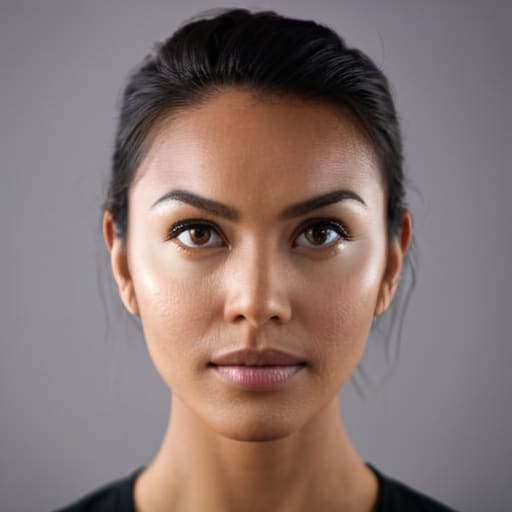
The biggest mistake I see is people treating their profile photo like a landscape painting. You might have a great shot of yourself at a conference, but if you upload it without checking the optimal aspect ratio for avatars, you’re going to end up with a tiny, unidentifiable smudge in the middle of the screen. Most platforms demand a 1:1 square, but here is the catch: they almost always display that square inside a circle. If you don’t account for those circular crop safe zones, you’ll lose the edges of your hair or, even worse, the top of your head.
I always tell my clients to leave some breathing room. Don’t zoom in so tight that your chin hits the bottom of the frame; it looks claustrophobic and breaks the visual flow of your page. Instead, aim to have your eyes positioned about two-thirds of the way up the frame. This helps with avoiding head cutoff in profile photos when the platform’s algorithm decides to shave off your forehead. It’s a small technical tweak, but it’s the difference between looking like a professional brand and looking like you accidentally took a selfie in a moving elevator.
Meeting Strict Profile Picture Resolution Requirements
Here is where most people trip up. They find a photo they love, upload it, and then spend ten minutes wondering why they look like a blurry thumb on LinkedIn or why their forehead is the only thing visible on Instagram. The problem isn’t usually your camera; it’s that you’re ignoring the actual profile picture resolution requirements set by the platforms. If you upload a low-res file, the platform will try to upscale it to fit their containers, and the result is a pixelated mess that kills your credibility instantly. I always tell my clients: if you aren’t starting with a file that is at least 1000×1000 pixels, don’t even bother hitting upload.
Beyond just the pixels, you have to account for the geometry. Even if you upload a perfect square, almost every major platform is going to force that image into a circle. This is where I see the most “evidence” in my folder—people who didn’t account for circular crop safe zones. If your face is too close to the corners of your original square image, the platform’s automated crop will slice off your ears or the top of your head. To avoid this, leave plenty of “negative space” around your face in the original file. It feels counterintuitive to leave empty space, but it’s the only way to ensure your face stays centered once the mask is applied.
Five ways to stop your face from getting cut off by a circle
- Center the eyes, not the nose. Most platforms use circular crops, and if you center your face based on your nose, the top of your head or your chin will get sliced off the moment the UI applies that circular mask.
- Leave a “safety buffer” of white space. Don’t zoom in so tight that your ears touch the edge of the frame; when the app shrinks your photo into a tiny icon on a mobile feed, you need that extra breathing room so you don’t look like a floating head.
- Check your contrast against the background. I’ve seen too many professional headshots where the person is wearing navy and sitting against a dark wall; once that tiny thumbnail hits a phone screen, you just look like a dark smudge.
- Test the “squint test” on mobile. Open your photo on your phone, hold it at arm’s length, and squint. If you can’t immediately tell it’s a human being, your crop is too wide or your lighting is too flat for a functional profile.
- Export for clarity, not just size. Don’t just upload a massive 5MB file and hope for the best; use a clean PNG or high-quality JPG so the compression algorithms on platforms like X or Instagram don’t turn your face into a pixelated mess.
Three rules for a profile picture that doesn't break
Test your crop on mobile immediately; if your face looks like a tiny dot on a three-bar signal connection, you’ve lost the lead before they even read your bio.
Stick to a 1:1 aspect ratio for your master file to avoid the platform’s auto-crop from butchering your composition.
Prioritize file size over “ultra-HD” vanity; a heavy image that lags during loading is just a broken link in disguise.
Stop overthinking the pixels
At the end of the day, getting your profile picture right isn’t about finding the perfect artistic filter; it’s about technical execution. If you’ve followed the steps above, you’ve already done the hard part: you’ve checked your aspect ratios, ensured your resolution won’t turn into a blurry mess the moment you upload it, and made sure your face isn’t being cut off by a circular mask. Remember, the goal is to remove friction. When your image loads instantly and looks crisp on both a desktop and a phone with a weak signal, you’ve succeeded. Don’t let a poorly cropped headshot become a silent barrier between you and the person who actually wants to click your link.
I know it feels like a massive distraction from the “real” work of content creation or running a business, but these small technical details are what separate a professional presence from a hobbyist one. You don’t need a professional studio setup to look capable; you just need to ensure your digital storefront isn’t broken. Once these files are saved and optimized, stop tweaking them and get back to what actually moves the needle. A clean, functional profile is a foundation, not a destination. Now that the technical debt is cleared, go out there and actually use those links.
Frequently Asked Questions
Do I really need to save different versions of the same photo for every single platform?
Yes, you absolutely do. I know it feels like extra work, but trying to use one single file for everything is how you end up with a blurry mess on LinkedIn and a head chopped off on Instagram. Each platform handles compression and cropping differently. If you want your brand to look consistent instead of accidental, save three versions: one high-res square, one optimized for mobile, and one specifically scaled for the platform’s weirdest constraint.
What happens if the platform's auto-crop cuts off the top of my head?
If the auto-crop is eating your hair, it’s because you’ve centered your face too tightly. Most platforms use a circular mask, which is a nightmare for square-thinking photographers. Stop trying to fill the frame. Instead, leave some “breathing room” around your head in the original file. I always aim for your eyes to sit about one-third of the way down the frame. It feels awkward in the raw shot, but it prevents the platform from decapitating you.
Is there a way to keep the image sharp if I'm resizing a small photo to fit a larger profile slot?
The short answer is: no, you can’t magically add pixels that aren’t there. If you stretch a tiny thumbnail to fit a high-res LinkedIn slot, it’s going to look like a blurry mess. Instead of just hitting “resize” in a basic editor, try using an AI upscaler—they’re surprisingly decent at guessing the missing detail. But honestly? If the original file is too small, your best bet is to just find a better photo. Don’t fight the math.
Should I use a solid color background to make the crop look cleaner on different UI themes?
Yes, do it. If you’re running a brand, a solid background is your best friend for consistency. When a user switches from light mode to dark mode, a busy, photographic background can look messy or get lost in the UI. A clean, solid color ensures your face stays the focal point and the crop looks intentional, not accidental, regardless of whether they’re on an iPhone or a desktop. Just keep the color simple.