

A Static Map Loads Faster
I was sitting in a cramped cafe last Tuesday, trying to pull up a local restaurant’s landing page on a patchy 3G connection, when the whole thing just… died. It wasn’t the text or the photos that killed it; it was a massive, heavy-duty map plugin that decided to hog every bit of bandwidth available. It’s the same mistake I see constantly: people think they need a high-tech, interactive masterpiece to show their location, but when you’re figuring out how to add a map, you’re usually just trying to stop a customer from getting lost. Most of the “solutions” you’ll find online are either way too expensive or will absolutely tank your page speed before the user even sees your headline.
I’m not here to sell you on a fancy API subscription or a complicated developer workaround. My goal is to show you the most efficient, lightweight ways to get a map onto your page without making your site crawl to a halt. I’ll walk you through the actual, practical steps of how to add a map that stays out of the way of your content while still doing its one job. We’re going to focus on speed and usability, because if your page takes ten seconds to load a pin on a map, you’ve already lost the customer.
Table of Contents
The Right Way to Use Google Maps Embed Code

Most people grab the first snippet of code they see and slap it onto their page, but that’s a quick way to tank your mobile performance. If you’re using the standard google maps embed code from the “Share” menu, you’re usually fine for a simple contact page. It’s lightweight and doesn’t require a developer. However, the moment you start trying to do something fancy—like adding custom markers for multiple locations or changing the colors to match your brand—you’re moving into the territory of a full API integration.
This is where most of my “evidence” folder gets filled. People try to force complex interactive map integration onto a landing page that’s supposed to be a quick, high-conversion tool. If you go the API route, please, for the love of your conversion rate, set up api key security for maps immediately. I’ve seen accounts get hit with massive unexpected bills because someone left their key wide open for anyone to scrape and use for their own projects.
If you want it to look professional without the bloat, focus on map loading speed optimization. If the map is below the fold, don’t let it load until the user actually scrolls down to it. A map that freezes a user’s phone while they’re trying to read your bio isn’t a feature; it’s a bug.
Why Website Map Implementation Fails Most Users
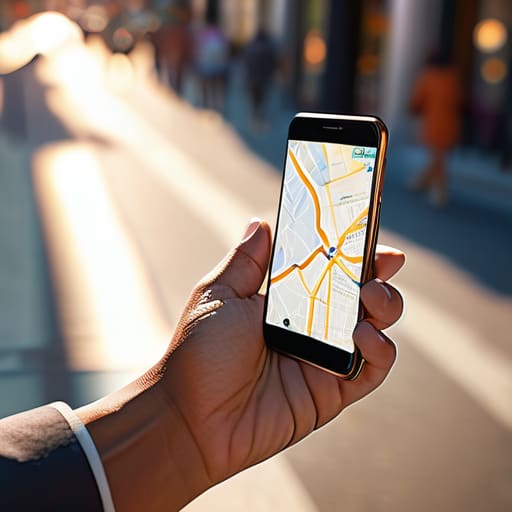
Most people treat a map like a piece of digital wallpaper—they just want it to appear so they can check the “location” box on their to-do list. But I’ve seen too many beautiful landing pages ruined because the creator treated website map implementation as an afterthought. The biggest culprit is almost always a massive hit to your page performance. You drop in a heavy, unoptimized widget, and suddenly your mobile users—the ones trying to find your shop while walking down a busy street—are staring at a grey loading box for ten seconds. If your page doesn’t load instantly, they aren’t going to wait for the map; they’re just going to close the tab.
Then there’s the aesthetic mismatch. I have a folder of “evidence” featuring sites where the map looks like it was pulled from a 2005 desktop computer, clashing violently with a modern, sleek brand identity. People forget that custom map styling is actually a thing. If your brand uses soft pastels and minimal lines, a bright, neon-green Google Map is going to look like a mistake, not a feature. It’s not just about being “pretty,” though; it’s about maintaining a professional flow that doesn’t break the user’s trust the moment they scroll down.
Five ways to stop your map from ruining your conversion rate
- Stick to the embed code rather than heavy API integrations. Unless you’re running a logistics company, you don’t need a complex setup that requires a billing account and a dozen lines of JavaScript just to show someone where your front door is.
- Check your mobile responsiveness before you hit publish. I’ve lost count of how many times I’ve seen a map that looks great on a desktop but turns into a giant, unscrollable black hole on a smartphone screen.
- Set a fixed height for the map container. If you don’t define the dimensions in your CSS, the map can sometimes expand to fill the entire vertical space of the page, forcing your customers to scroll for three minutes just to find your contact form.
- Keep the map’s “zoom level” tight. Don’t show the entire tri-state area if you’re a coffee shop in Brooklyn. Pinpoint the location so people can actually orient themselves immediately without having to pinch-and-zoom like it’s 2012.
- Always include a plain-text address right next to the map. Maps fail, signals drop, and sometimes the embed just breaks. If they can’t see the map, they should at least be able to copy and paste your address into their own GPS without hunting for it.
The bottom line for your bio page
Use the embed code, not a heavy plugin; your page speed is more important than a fancy interactive interface that takes ten seconds to load.
Check your map on a mobile connection; if your customers can’t pinch-to-zoom or find your street name on three bars of signal, the map is useless.
Keep the map’s purpose narrow—if you’re a service provider, show the area you cover, not every single coffee shop in a five-mile radius.
Stop overcomplicating the journey

At the end of the day, adding a map isn’t about showing off fancy tech or having the most interactive interface on the web. It’s about the logistics: making sure that when someone decides they want to visit you, they can actually find the door without their browser freezing. We’ve talked about why you should avoid heavy, bloated plugins and why the simple embed code is almost always your best friend for maintaining page speed. If you follow these steps—keeping the code clean, testing the mobile view, and ensuring the pin actually drops where you say it does—you’ve already beaten 90% of the broken bio pages I see in my “evidence” folder. Just remember: functionality always beats decoration.
Don’t let the technical side of things intimidate you into skipping this step entirely. A map is a bridge between your digital presence and your physical reality, and a broken bridge is just a way to lose customers before they even arrive. If you can get your map to load quickly and work predictably on a single bar of signal, you are doing more for your user experience than most big-budget brands. Build it, test it on your phone, and then get out of the way so your visitors can actually find you. You’ve got this.
Frequently Asked Questions
Will adding a map slow down my mobile load times?
Yes, it will. If you just copy-paste a standard embed, you’re essentially forcing your visitor to download a massive chunk of Google’s heavy scripts before they can even see your bio. On three bars of signal, that’s a death sentence for your bounce rate. My rule of thumb: if you don’t absolutely need the interactive map for a specific reason, just use a high-res screenshot of the location with a link to Google Maps. It’s faster, lighter, and much more reliable.
Can I customize the map colors to actually match my brand instead of using the default Google look?
Yes, but you can’t do it through the standard embed menu. If you just copy-paste the basic iframe, you’re stuck with that bright, generic Google blue. To actually match your brand, you’ll need to use the Google Maps Platform API and a bit of JSON styling. It sounds intimidating, but it just means you can mute the colors or swap the palette so the map feels like part of your site, not a random sticker slapped on top.
Is there a way to show multiple locations without the whole page becoming a mess?
Yes, and please don’t try to stack five different embed codes on one page. That’s a fast track to a massive page-load delay and a layout that looks like a ransom note. Instead, use a single Google My Maps layer to plot all your spots, or better yet, build a simple searchable list. Let users click a location to trigger a specific map view. It keeps the UI clean and your mobile load times sane.
How do I stop the map from being a giant, unclickable block that eats up the whole screen on a phone?
This is a classic mistake. You’ve likely set a fixed width in pixels, which works on my laptop but breaks everything on a smartphone. Instead, go into your CSS and set the map width to `100%`. This tells the browser to scale the map to the size of the screen, not a specific number. Also, check your container padding; if you don’t constrain the height, that map will turn into an endless scrolling nightmare on mobile.