How to add a profile photo that works small.

Your Face at Forty Pixels

I was sitting in a coffee shop last Tuesday, staring at a client’s new landing page on my phone, and I felt that familiar twitch in my eye. They had spent hundreds on a professional lifestyle shoot—beautiful, airy, high-resolution shots of them laughing in a sunlit garden—but the moment that image scaled down to a tiny bio icon, they became a featureless beige smudge. It’s a classic mistake: people focus so much on the “vibe” of the high-res file that they completely forget about the reality of mobile users. If you don’t understand how to add a profile photo that works small, you aren’t building a brand; you’re just building a digital blur.

I’m not here to talk about lighting setups or expensive camera gear. I want to talk about the mechanics of visibility. In this guide, I’m going to show you exactly how to select, crop, and export an image so that your face remains instantly recognizable even when it’s the size of a fingernail. We are going to skip the fluff and focus on the technical details that actually matter: contrast, framing, and file weight. No growth-hacking nonsense—just the practical steps to make sure your profile actually works on three bars of signal.

Table of Contents

Mastering Image Resolution for Thumbnails Without the Bloat

Mastering Image Resolution for Thumbnails Without the Bloat

The biggest mistake I see is people uploading a massive, 5MB high-res portrait and expecting the browser to do the heavy lifting. It won’t. When you upload a file that’s too heavy, you aren’t just slowing down your page; you’re actively punishing users on mobile data. My rule of thumb is to aim for the correct social media profile picture dimensions from the start. You want enough pixels so it looks crisp on a Retina display, but not so many that your landing page feels like it’s wading through molasses.

If you want actual avatar visibility tips that work, focus on the ratio of your face to the frame. Most platforms use a round cutout, so if your head is too far away, you’ll end up looking like a tiny, unrecognizable speck in a sea of white space. I always recommend minimizing background distractions by using a solid or slightly out-of-focus backdrop. If the background is as busy as your face, nobody is going to know who you are when they glance at your link. Aim for a tight crop where your eyes are clearly visible; if they can’t see your expression, you’ve lost the human connection before they’ve even read your bio.

The Math of Social Media Profile Picture Dimensions
The Math of Social Media Profile Picture Dimensions.

I used to think that uploading the highest resolution file possible was the smartest move, but I was wrong. If you upload a 4000-pixel masterpiece to a platform where the actual display size is a tiny 180-pixel circle, you aren’t being “high quality”—you’re just making the page load slower for no reason. The goal isn’t maximum detail; it’s functional clarity. Most platforms use a square aspect ratio for the upload, but they immediately apply a mask. This is where most people trip up.

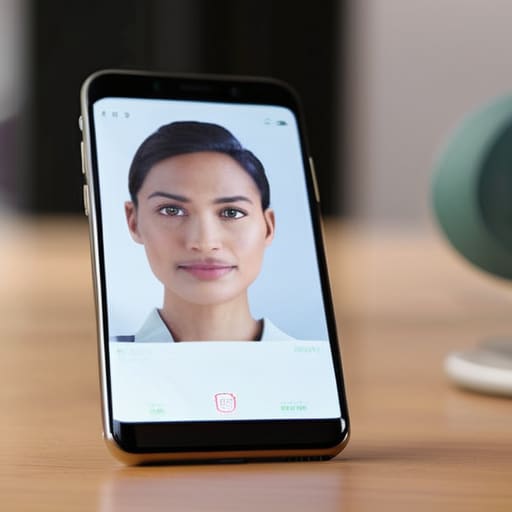
When you’re calculating your dimensions, you need to account for circular crop optimization. I always tell clients to treat their square image like a safety zone: keep your eyes and the center of your face in the middle 60% of the frame. If your head is too close to the corners, the platform’s circular mask will literally chop your ears off or, worse, cut through your forehead.

Instead of guessing, aim for a standard 500×500 pixel canvas. It’s large enough to look crisp on a Retina display but small enough that it won’t tank your mobile load speeds. Focus on high contrast headshots where your features stand out against the background; if the math is right but the contrast is low, you’ll still look like a blurry smudge when someone scrolls past you on a phone.

Five ways to stop your profile photo from becoming a pixelated mess

  • Center your face with breathing room. If your head touches the edges of the frame, the circular crop will slice off your ears or forehead, making you look like a floating chin. Leave a little bit of “dead space” around your head so the crop feels intentional, not accidental.
  • Ditch the busy backgrounds. I see this constantly with my restaurant clients—people trying to pose in front of a patterned wallpaper or a crowded bar. When that photo shrinks to the size of a fingernail on a mobile screen, the background turns into visual noise that swallows your face whole. Stick to a solid or softly blurred backdrop.
  • Check your contrast levels. A photo that looks great in a high-res gallery might turn into a dark, unrecognizable smudge in a tiny comment thread. If you aren’t standing out from your background, you’re invisible. High contrast between you and the backdrop is what makes a profile “pop” when someone is scrolling fast.
  • Avoid the “group shot” trap. I know it’s tempting to use a photo from a great event where you’re with friends, but if we can’t tell which person is you without zooming in, the photo has failed its only job. A profile picture is a visual handshake; it needs to be a solo shot.
  • Test the “squint test” before you upload. Open your image on your laptop, shrink the window until the photo is tiny, and squint. If you can’t immediately recognize the shape of your face or your general vibe, the image is too complex. If it looks like a blurry blob, go back to the drawing board.

The quick checklist for a photo that actually works

Test your photo at 50px scale before you upload it; if you can’t recognize your face or the main subject, it’s going to look like a smudge on a mobile screen.

Prioritize high contrast over high resolution; a sharp, well-lit photo with a simple background will always outperform a high-def shot that gets lost in a busy composition.

Export as a web-optimized file to keep your page speed up, because a beautiful profile picture isn’t worth a three-second delay in page load time.

Stop overthinking the pixels

Stop overthinking the pixels for profile photos.

At the end of the day, a profile photo isn’t a canvas for your high-resolution art portfolio; it is a functional anchor for your brand. If you have followed the math we discussed, you should have a file that is high enough quality to look sharp on a retina display but light enough that it doesn’t make your landing page feel like it’s wading through molasses. Remember to keep the composition tight—if your face takes up less than 60% of that tiny circle, you are essentially asking people to squint at a stranger. Focus on clarity over complexity and ensure your file size is optimized so that your page loads instantly, even on a spotty connection.

I know it feels like a small detail, but in the world of conversion, there are no small details. When a user lands on your page, they shouldn’t be wondering if that blurry shape is a person or a smudge on their screen; they should see a face they can trust. A clean, well-scaled thumbnail is the foundation of professional credibility. Once you get this “boring” part right, you can stop worrying about the technicalities and start focusing on the content that actually moves the needle. Build for utility, not for vanity, and the rest of your page will perform much better for it.

Frequently Asked Questions

Should I use a PNG or a JPEG if I’m trying to keep the page loading fast?

If you’re looking for speed, go with a JPEG for photos. A high-quality JPEG will almost always have a smaller file size than a PNG, which means your page loads faster on a spotty connection. Use PNG only if you have a graphic or a logo with sharp lines and flat colors; otherwise, the extra kilobytes are just dead weight. I always check the file size before hitting publish—if it’s over 100KB, it’s too big.

How do I make sure my face doesn't get cut off by the circular crop most platforms use?

This is where most people trip up. They upload a great headshot, only to find their forehead or chin sliced off by the platform’s circular crop. My rule of thumb: treat your photo like a target. Keep your face dead center and leave plenty of “breathing room” around your head. If your chin is touching the bottom of the frame, you’ve already lost. Aim for your eyes to sit about one-third of the way down from the top.

Is it worth using a professional headshot if the icon is only going to be the size of a fingernail?

It depends on what you’re actually communicating. If you’re a corporate consultant, a polished headshot adds instant legitimacy. But if you’re a creator, a high-end studio photo can actually feel too stiff for a tiny icon. My rule: prioritize clarity over cost. A professional shot is a waste of money if it’s too zoomed out. I’d rather see a clear, well-lit smartphone photo where I can actually recognize your face than a fancy portrait that looks like a smudge.

If I upload a high-res photo, will the platform automatically shrink it, or will it just break my page speed?

Technically, yes, most platforms will shrink it, but that’s a trap. They might scale the image down visually, but they aren’t always optimizing the file weight behind the scenes. You end up forcing a user on a spotty connection to download a 5MB file just to see a tiny circle. It’s lazy engineering. Resize it yourself before you upload. It keeps your load times fast and prevents that awkward pixelation when the platform’s compression fails.


How to use a call to action on a bio page.

One Clear Ask Per Page

I was sitting in a cramped café last Tuesday, trying to load a client’s new profile on a patchy 3G connection, when I saw it: a beautiful, high-resolution landing page with a “Learn More” button buried under three paragraphs of poetic nonsense. It was a classic case of someone trying to be profound when they should have been being functional. Most people treat their bio like a digital diary, but if you don’t understand how to use a call to action on a bio page effectively, you aren’t building a profile; you’re just building a museum of wasted clicks. I’ve spent years staring at these “evidence” files, and the pattern is always the same: too much fluff, not enough direction.

I’m not here to talk about “synergistic engagement” or any other growth-hacking nonsense that sounds good in a boardroom but fails on a mobile screen. Instead, I’m going to show you the boring, practical mechanics of a CTA that actually converts. We are going to focus on placement, clarity, and why your button needs to do exactly one thing. By the end of this, you’ll know how to stop asking for permission and start telling your visitors exactly where to go next.

Table of Contents

Effective Bio Link Strategies That Actually Work

First, let’s talk about the “Linktree Trap.” I see so many people treat their bio link like a digital junk drawer, throwing in their latest blog post, their shop, their newsletter, and a link to their favorite charity all at once. When you give people ten choices, they usually choose none. If you want real results, you need to lean into single goal landing page design. Pick the one thing that actually moves the needle for your business right now and make that the star of the show. If you’re trying to sell a course, don’t let a random YouTube video distract them halfway down the page.

Second, you have to master the art of writing persuasive microcopy. Stop using “Click Here” or “Learn More”—those are filler words that tell me nothing. I want to know exactly what happens when I tap that button. Instead of “Sign Up,” try “Get the Weekly Strategy Guide.” It takes three extra seconds to write, but it tells the user exactly what the payoff is. When you treat your buttons like a promise rather than a command, your conversion rate optimization for social bios will actually start to reflect the effort you’re putting in.

Why Single Goal Landing Page Design Trumps Everything

Why Single Goal Landing Page Design Trumps Everything

Most people treat their bio link like a digital junk drawer. They throw in a link to their latest blog, their shop, their newsletter, and a random charity they support, all hoping something sticks. But when you give a visitor five different directions to go, they usually end up going nowhere. This is where single goal landing page design becomes your best friend. Instead of a buffet of options that causes decision paralysis, you give them one clear path. If your goal today is to get more newsletter sign-ups, every single element on that page should point toward that one button.

When I look at my “evidence” folder of bad designs, the common thread is always a lack of focus. A page that tries to sell a product, grow a following, and showcase a portfolio all at once is just a fast way to tank your conversion rate optimization for social bios. You have about three seconds of attention before someone swipes away. If they have to hunt for the point of the page, you’ve already lost them. By stripping away the noise and focusing on one specific action, you make it incredibly easy for the user to say “yes.” It isn’t about being boring; it’s about being effective.

5 Ways to Stop Losing Clicks to Bad Design

  • Stop using “Click Here.” It’s lazy and tells the user nothing. If you want them to book a consultation, the button should say “Book a Consultation.” If they are buying a guide, say “Get the Guide.” Be literal so they don’t have to think.
  • Limit your primary CTA to one single, standout button. If you have five different links all styled with the same bright color, your visitor’s eyes will just bounce around the screen without actually clicking anything. Pick the one thing that actually pays the bills and make it look different from the rest.
  • Test your button size on a mobile screen. I’ve seen so many “professional” bio pages where the CTA is a tiny text link that is impossible to hit with a thumb while walking down a street. If it’s not a chunky, tappable button, it’s not a CTA; it’s an obstacle.
  • Place your most important link in the “above the fold” zone. On a phone, that means they should see your main goal before they even have to move their thumb to scroll. If your primary offer is buried under a long bio or a photo, you’ve already lost 40% of your potential traffic.
  • Use a sense of direction, not false urgency. You don’t need a countdown timer that looks like a scam. Instead, use a simple line of text above the button that explains the benefit, like “Download the free checklist below.” It guides the eye naturally without feeling like a high-pressure sales pitch.

The Bottom Line

Pick one primary goal and stick to it; if you try to sell a course, book a consultation, and promote a newsletter all in one link, you’ll end up doing none of them well.

Test your links on actual mobile data, not just office Wi-Fi, to ensure your CTA doesn’t time out just when someone is ready to click.

Write your button text for humans, not algorithms—”Get the Guide” is much more effective than a vague “Click Here” that tells the user nothing about what happens next.

Stop Overthinking and Start Testing

Stop Overthinking and Start Testing bio pages.

At the end of the day, a successful bio page isn’t about having the most aesthetic layout or the cleverest copywriting; it’s about removing friction. We’ve talked about why you need to ditch the clutter, why a single, clear goal beats a menu of ten different links, and why your CTA needs to be visible before the user even thinks about scrolling. If your page takes five seconds to load or asks someone to solve a riddle just to find your contact info, you’ve already lost them. Focus on the boring essentials: speed, clarity, and a direct path to the action you want them to take.

I know it feels safer to include everything you’ve ever worked on, but your bio page isn’t an archive—it’s a doorway. Every extra link is just another chance for someone to get distracted and leave without clicking your main goal. Stop trying to be everything to everyone and start being exactly what your target audience needs in that specific moment. Go back to your current link-in-bio, strip away the noise, and see how much more effective it becomes when you finally let your primary CTA do the heavy lifting.

Frequently Asked Questions

How many different links can I actually include before I start killing my conversion rate?

If you’re asking this, you’re already feeling the friction. Here is the hard truth: every link you add is a tiny leak in your conversion bucket. Once you hit more than three or four distinct options, you aren’t providing “choice”—you’re providing decision fatigue. I’ve seen bio pages with ten links that perform worse than a single, well-placed button. Stick to your primary goal. If everything is a priority, nothing is.

Should I use a button for my main goal or stick to a text link to keep the page loading faster?

Use the button. I know, I know—you’re worried about load times. But we aren’t talking about a massive 5MB unoptimized hero image here; we’re talking about a few lines of CSS. A button might cost you a millisecond, but it gains you the conversion. A text link is easy to miss when someone is scrolling quickly on a moving train. If your main goal is worth doing, make it look like something worth clicking.

Does the placement of the CTA matter if most people are scrolling on a mobile device with poor signal?

It matters more than you think. When someone is on a shaky connection, they aren’t going to hunt for your link. If they have to scroll past three paragraphs of your life story just to find your booking button, they’re gone. Put your CTA “above the fold”—meaning visible without scrolling—and keep it high up. If it doesn’t load instantly, make sure the most important button is the first thing the browser tries to render.

How do I write a CTA that doesn't sound like every other generic "Click Here" button on the internet?

Stop using “Click Here.” It’s lazy, and more importantly, it tells the user nothing about what happens next. If I’m clicking a button, I want to know the payoff. Instead of generic commands, use outcome-oriented language. If you’re selling a guide, try “Get the Checklist.” If it’s a booking link, use “Grab a Time Slot.” Give them the destination, not just the directions. It builds trust before they even land on the next page.

How to write link labels people click.

Say Where It Goes, Not What It Is

I was sitting in a coffee shop last Tuesday, scrolling through a brand’s Linktree, when I felt that familiar twitch in my eye. They had spent hundreds of dollars on a custom theme and professional photography, but their call-to-action was just a series of vague, “aesthetic” words like Explore or Discover. It’s the same mistake I see every single week: people treat their bio links like a mood board instead of a tool. If you want to actually move the needle, you need to stop decorating and start learning how to write link labels people click. When you hide your value behind “clever” phrasing, you aren’t being creative; you’re just being unclear.

I’m not here to give you a lecture on “synergistic engagement” or some high-level growth hacking theory that falls apart the moment someone tries to load your page on a spotty train connection. Instead, I’m going to show you the practical, slightly boring mechanics of what actually works. We are going to focus on clarity over cleverness, ensuring your visitors know exactly what they’re getting before they even tap the screen. No fluff, no jargon—just the straightforward rules for writing labels that actually convert.

Table of Contents

Ditch the Decoration for Real Anchor Text Optimization

Ditch the Decoration for Real Anchor Text Optimization

I’ve spent way too many hours staring at “Read More” or “Click Here” buttons that lead absolutely nowhere useful. When you use generic phrasing, you aren’t being subtle; you’re being invisible. People don’t skim pages to find mystery boxes; they scan for answers. If your link text doesn’t tell me exactly what is waiting for me on the next page, I’m going to keep scrolling. This isn’t just a design preference; it’s fundamental anchor text optimization. If I’m clicking a link about a pricing guide, I want to see the words “View our pricing guide,” not a tiny blue underline that says “info.”

When I look at my “evidence” folder of bad landing pages, the pattern is always the same: people prioritize aesthetics over clarity. They want a clean, minimalist look, so they use single words or icons. But from a conversion rate optimization copywriting perspective, that’s a massive mistake. You are essentially asking your audience to gamble their time. Instead of being decorative, make your links work for you by using descriptive hyperlink text that sets a clear expectation. If the link promises a specific outcome, the click becomes a logical next step rather than a leap of faith.

Why Descriptive Hyperlink Text Is Your Only Real Asset

When I’m scrolling through a bio link on a spotty mobile connection, I have zero patience for ambiguity. If a link says “More Info,” my brain treats it like digital noise. I don’t know if I’m about to read a long-form essay or be hit with a high-pressure sales pitch. This is where most people fail: they treat their links like aesthetic ornaments rather than functional tools. In reality, descriptive hyperlink text acts as a mental bridge. It tells the visitor exactly what the destination looks like before they commit to the tap, which is the single most effective way of improving click through rate without needing a massive ad budget.

Think of your links as the signposts in a crowded station. If the sign just says “Exit,” but the exit is actually a staircase to a different platform, people get frustrated and stop moving. The same applies to your landing page. When you prioritize anchor text optimization, you aren’t just helping search engines; you are respecting the user’s time. A link that says “Download my Pricing Guide” is infinitely more valuable than “Click Here” because it sets an expectation. If you want to see actual results, you have to stop treating your links like decoration and start treating them like the critical navigation tools they are.

Five rules for labels that actually get clicked

  • Stop using “Click Here” or “Read More.” It’s lazy, it’s bad for accessibility, and it tells me absolutely nothing about where I’m going. If the link is for a recipe, the label should say “Get the sourdough recipe,” not “Click here for more info.”
  • Keep the label short enough to scan but long enough to explain. I’ve seen people try to turn entire paragraphs into blue underlined text. That’s not a link; that’s a distraction. Aim for a punchy phrase that acts like a signpost.
  • Match the label to the destination. If my link says “Download the Pricing Guide” and it opens a generic “About Us” page, I’m leaving immediately. The promise of the text has to be the reality of the page.
  • Write for the person on a slow connection. Most people are scrolling on their phones with terrible signal. If your link text is vague, they won’t bother waiting for the page to load because they aren’t sure if it’s worth the data.
  • Test your links by reading them out of context. If I saw your link label sitting alone in a list without the surrounding paragraph, would I still know what I was clicking on? If the answer is no, your label isn’t doing its job.

The Bottom Line

If your link label is just “click here” or “read more,” you’re wasting space and losing clicks; tell people exactly what is on the other side of that tap.

Treat every link as a promise—if the label says “Download the Guide,” the very first thing they see on the next page better be that guide.

Prioritize clarity over cleverness every single time, because a user on a spotty mobile connection isn’t going to solve a riddle just to find your contact form.

Stop Guessing and Start Labeling

Stop Guessing and Start Labeling links.

At the end of the day, writing link labels isn’t some complex psychological puzzle; it’s just about being helpful. We’ve covered why you need to ditch those vague “click here” buttons, why descriptive anchor text is the backbone of a page that actually functions, and why you should stop treating your links like decorative elements rather than functional tools. If you can look at your link and tell me exactly what is going to happen when I tap it—without me having to guess—you’ve already done more than 90% of the people currently cluttering up my feed. It comes down to one simple rule: if it isn’t descriptive, it’s broken.

I know it feels faster to just throw a generic button on a landing page and call it a day, but that’s how you lose people before they even get to your offer. Every time you choose a clear, purposeful label over a “pretty” but empty one, you are respecting your visitor’s time and their limited data connection. Don’t build pages that require a manual to navigate; build pages that work the moment they load. Go back through your current bio or landing page right now, find the three weakest links, and fix them. You’ll likely see the difference in your numbers faster than you think.

Frequently Asked Questions

How long can a link label actually be before it starts looking messy on a mobile screen?

Keep it under five words. Once you hit that limit, you aren’t writing a label anymore; you’re writing a sentence. On a mobile screen—especially if someone is scrolling through a bio on a shaky connection—long links turn into messy, multi-line blocks that people instinctively skip. If it wraps to a second or third line, it loses its visual hierarchy and looks like a mistake. Be punchy. If it doesn’t fit on one line, it’s too long.

If I'm linking to a product, should I use the exact product name or something more action-oriented?

If you’re linking to a product, use the product name—but don’t let it stand alone. A naked product name like “Hydrating Serum” is fine for a catalog, but on a bio page, it’s passive. I prefer combining the two: “Get the Hydrating Serum.” You give the user the exact context of what they’re clicking, while the verb provides the nudge. It’s not about being flashy; it’s about removing the guesswork.

Is it okay to use emojis in link labels, or does that just add more digital clutter?

Emojis are fine, but only if they earn their keep. If a single 🚀 helps a user instantly identify a “Launch” button, keep it. But if you’re peppering every link with sparkles just because they look “on brand,” you’re just adding noise. I’ve seen too many pages where the icon actually distracts from the text. My rule is simple: if the emoji doesn’t clarify the action, it’s just more digital clutter. Delete it.

How do I handle links that need to go to a different website without making the user feel like they're being redirected?

Don’t try to hide it; just be honest about it. If you’re sending someone from your bio to a third-party shop or a guest blog, tell them. Use a small icon or a quick parenthetical like “(opens in new tab)” or “(external site).” It sounds nitpicky, but nothing kills trust faster than a user clicking a link and suddenly feeling like they’ve been hijacked by a different brand. Clarity beats seamlessness every time.

Learn how to order links by priority.

The Top Link Gets Most of the Taps

I was sitting in a crowded cafe last Tuesday, watching a client try to navigate her own Linktree, and I felt that familiar twitch in my eye. She had twelve different buttons, all competing for attention with equally bright colors and generic icons, and honestly? I couldn’t tell if she was selling a digital course or a sourdough starter. Most “experts” will tell you that you need a complex funnel or a multi-step marketing sequence to see results, but they’re missing the point entirely. Real conversion doesn’t come from more options; it comes from knowing how to order links by priority so your audience doesn’t have to think. When you give people too many choices, they usually choose nothing at all.

I’m not here to sell you on some expensive growth-hacking framework or a dozen “must-have” plugins. I want to show you how to strip away the noise and build a page that actually converts. I’ll be sharing the exact, no-nonsense logic I use to decide what stays at the top and what gets cut entirely. We’re going to focus on the boring, essential stuff: clarity, speed, and making sure your most important goal is the first thing a human eye hits when the page loads.

Table of Contents

Mastering User Intent Mapping for Instant Clarity

Mastering User Intent Mapping for Instant Clarity.

When I look at a bio page, I’m not looking at a list of links; I’m looking at a series of decisions. Most people treat their link list like a junk drawer—everything just gets tossed in there because it feels important. But if you want to actually move the needle, you have to start with user intent mapping. You need to ask yourself: why is this person here? Are they looking for your latest newsletter, or are they trying to buy your course? If you can’t answer that in a split second, your page has already failed.

Once you understand why they are clicking, you can apply some basic information architecture principles to guide them. I don’t care about fancy animations or scrolling text; I care about the logical flow. If a user arrives with the intent to book a consultation, that link shouldn’t be buried under your “About Me” story or your Spotify playlist. You have to align your link order with the actual journey the visitor is on.

Finally, remember that people don’t read; they scan. This is where you use visual weight to signal importance. Your most critical call-to-action needs to look different—perhaps it’s a button instead of a plain text link—so it stands out immediately. If everything is shouting for attention, nothing gets heard. Stop trying to be everything to everyone and just direct the eye toward the one thing that matters most right now.

Using Information Architecture Principles to Cut the Noise

Using Information Architecture Principles to Cut the Noise

When I was managing social media for that cosmetics brand, I saw people build these massive link trees that felt more like a digital junk drawer than a landing page. They were trying to use every single link they’d ever created. To fix this, you have to lean on basic information architecture principles. This isn’t about being fancy; it’s about organizing your links so a human brain can process them in under two seconds. If your visitor has to hunt for your shop link through a sea of “Read my blog” and “Follow my Twitter” buttons, you’ve already lost them.

The trick is to use visual weight in web design to guide the eye. Not every link deserves the same amount of attention. I always tell my clients to treat their most important destination—the one that actually drives revenue—as the anchor. You can use a slightly larger button, a different color, or even just a bit more white space around it to signal its importance. When you create a clear user experience navigation hierarchy, you stop asking your audience to make decisions and start leading them toward the one action that actually matters.

  • Kill the “everything everywhere” approach. If you have ten links, you have zero links. Pick the top three things you actually want people to do today and bury the rest in a secondary menu or a single “more” button.
  • Put your primary conversion goal in the first slot. I don’t care if your latest blog post is clever; if you’re selling a course, the course link goes at the top. Users scan from top to bottom, and they don’t scan.
  • Use “action-first” labels to guide the click. Instead of a vague “My Newsletter,” try “Get my weekly marketing tips.” It tells the user exactly what they’re getting before they commit to the load time.
  • Group your links by intent so you aren’t jumping between topics. If you have three links related to your shop and two related to your YouTube channel, keep them in those clusters. It reduces the cognitive load on someone trying to find something specific.
  • Test your order on a real device, not just your desktop. I’ve seen so many beautiful link trees that become a nightmare of accidental clicks once they hit a mobile screen. If the links are too close together or the priority order feels messy on a phone, fix it.

Stop treating your bio like a digital junk drawer; if a link doesn’t serve your primary goal for this month, move it to a secondary page or delete it entirely.

Prioritize the “thumb test”—place your most important link in the top third of the screen where it’s easiest to hit without hunting through a wall of text.

Use specific, action-oriented labels instead of vague descriptions, because “Get my free guide” will always outperform a generic “Resources” button.

Stop guessing and start ranking

Stop guessing and start ranking your links.

At the end of the day, a bio page isn’t a digital scrapbook; it’s a functional tool. We’ve talked about mapping user intent and using clean information architecture to strip away the fluff, but the core takeaway is simple: if everything is a priority, nothing is a priority. You need to look at your list of links through the eyes of a stranger who has exactly three seconds of attention before they scroll past you. If you haven’t placed your primary conversion goal at the top, you’re essentially making your audience work for the privilege of giving you their time or money. Audit your links, cut the ones that only serve your ego, and make sure the most important path is the easiest one to follow.

I know it feels counterintuitive to delete things you’ve worked hard on, but I promise you, a leaner page will always outperform a cluttered one. I’ve spent enough time staring at “evidence” folders of broken, over-designed landing pages to know that clarity beats cleverness every single time. Don’t let the fear of missing out on a secondary link stop you from perfecting your primary one. Build your page with the intention of being useful, not just being seen. Once you get the hierarchy right, the numbers will start to do the talking for you.

Frequently Asked Questions

How do I decide which link is actually my "top priority" when I have three different things I'm trying to sell?

Stop trying to split the difference. If you give three different things equal weight, you’re giving them all zero weight. I always look at the math: which one has the highest margin or the shortest sales cycle? Pick that one. That is your hero link. The others aren’t “secondary”; they are supporting players. Put your main goal at the top, make it visually distinct, and let the rest follow in a clean, secondary list.

Is it better to group similar links together or just list them all from most important to least important?

If you have more than five links, group them. If you have three, just rank them by priority.

At what point does having too many links start hurting my conversion rate?

It starts hurting the second you force a visitor to think. In my experience, once you hit five or six links, you aren’t offering “options”—you’re creating friction. Every extra button is a tiny moment where a user asks, “Wait, which one do I need?” If they have to pause to decide, they’ve already scrolled past. Keep it to three high-value links. If it doesn’t drive a specific action, it’s just digital clutter.

Should I use different visual styles for my main link, or does that just make the page look messy?

Use a different style, but keep it subtle. If your main link looks like a completely different website, you’ve just created visual friction. Instead, try a solid background color for your primary button while keeping the others as simple outlines. It draws the eye immediately without looking like a ransom note. I always look for that 2-to-1 ratio: one clear focal point, and the rest acting as supporting characters. Anything more is just clutter.

How to decide how many links to show.

Five Links Beat Fifteen

I was sitting in a crowded cafe last Tuesday, waiting for a client call, when I saw someone struggle to navigate a link-in-bio page. It was a disaster—a digital junk drawer of fifteen different buttons, half of which didn’t even lead to working URLs. It’s the same mistake I see constantly: people think more options equals more opportunity, but in reality, it just creates decision paralysis. When you’re trying to figure out how to decide how many links to show, the instinct is to include everything you’ve ever touched. But if your audience has to hunt through a list of ten items just to find your shop, they aren’t going to hunt; they’re just going to close the tab.

I’m not here to give you a lecture on “maximizing digital touchpoints” or any other hollow marketing jargon. I want to talk about what actually moves the needle. I’m going to show you how to audit your current list, strip away the noise, and pick the specific number of links that actually drives clicks without slowing down your page load. We’re going to focus on clarity over clutter, and I’ll give you the practical framework I use to keep my own landing pages lean and effective.

Table of Contents

Minimizing Choice Overload to Keep People Moving

Minimizing Choice Overload to Keep People Moving.

When you give someone ten different directions at once, they usually end up standing still. I see this constantly with brand profiles: a link to the latest blog, a link to the shop, a link to a newsletter, and three different social icons. By the time a visitor has scanned the list, they’ve already mentally checked out. This is a classic case of minimizing choice overload being ignored in favor of “more is better.” When you overwhelm a user, you aren’t giving them options; you’re giving them homework.

In my experience, the goal isn’t to provide a directory; it’s to guide a single action. If you want to improve your conversion, you need to focus on reducing cognitive load in UI design. Every extra link you add is a new mental calculation the visitor has to make: “Do I want this? Is this relevant? Where does this go?” If they have to think too hard, they’ll just swipe away.

Instead, try to group your secondary links or hide them behind a single “More” button if you absolutely must have them. I always tell my clients to pick the one primary destination that moves the needle for their business and make that the star. Everything else is just noise that slows down the person you’re actually trying to reach.

Why Your Best Work Gets Lost in the Noise

Why Your Best Work Gets Lost in the Noise

I’ve seen it happen a dozen times: a creator spends three weeks perfecting a new digital product, only to link to it on a bio page that looks like a digital junk drawer. You’ve got your latest YouTube video, your newsletter, your shop, your charity partner, and a link to your Spotify playlist all fighting for the same three inches of screen space. When you present that many options, you aren’t giving people freedom; you’re creating friction. This is a classic failure in user decision making processes—the more paths you offer, the more likely the user is to stand still and do nothing at all.

In my experience, the “noise” isn’t just visual; it’s mental. When a visitor lands on your profile, they are usually looking for one specific thing. If they have to scan through a list of twelve different destinations, you’ve failed at reducing cognitive load in UI design. They shouldn’t have to work to find your value. If your most important update is buried at position seven in a list of ten, it might as well not exist. The goal isn’t to show them everything you’ve ever done; it’s to show them what you want them to do next.

My checklist for trimming the fat

  • Pick one primary goal for the visit. If you want them to sign up for your newsletter, that link gets the top spot and the most visual weight. Everything else is secondary.
  • Audit your “dead” links. I’ve seen so many bios with links to Twitter accounts that haven’t been posted to since 2021. If you aren’t actively maintaining it, delete it.
  • Group your secondary links. If you absolutely must have five links, try to consolidate them. Instead of three separate links for “My Blog,” “My Latest Post,” and “My Portfolio,” just use one “Read my work” link.
  • Test the “thumb rule.” Most people are viewing your bio on a phone while walking or waiting for coffee. If your links are so small and numerous that they can’t tap one without hitting another, you’ve failed.
  • Use the “So What?” test. Look at every link and ask, “If someone clicks this, does it actually help them understand what I do?” If the answer is “maybe,” cut it.

The bottom line

Audit your links against your current goal; if a link doesn’t directly serve what you’re trying to achieve this month, delete it or hide it.

Prioritize speed over variety by cutting heavy assets and unnecessary redirects that kill your load time on mobile.

Test your page on a poor connection to ensure your most important call-to-action is actually visible and clickable before the user bounces.

The Bottom Line

The Bottom Line: prioritize fewer links.

At the end of the day, deciding on your link count isn’t about finding a magical number like five or seven; it’s about ruthless prioritization. If you try to direct people to your latest blog post, your newsletter, your shop, your portfolio, and your LinkedIn all at once, you aren’t giving them options—you’re giving them an excuse to close the tab. I’ve seen too many beautiful pages fail simply because the user felt overwhelmed by the sheer volume of choices. Remember to audit your links every single month. If a link isn’t actively driving a specific, measurable result, get it off the page. A lean bio page that does one thing exceptionally well will always outperform a cluttered one that does nothing at all.

Stop treating your bio page like a digital junk drawer where you can just toss everything you’ve ever worked on. Your landing page is a doorway, not a warehouse. When you strip away the unnecessary fluff and focus on the path that actually matters, you aren’t losing out on traffic; you are guiding your audience exactly where they need to go. Build with intention, test your load speeds, and trust that less is almost always more. Now, go through your links and delete the ones that are just taking up space. Your conversion rate will thank you.

Frequently Asked Questions

What if I have a new product launch that absolutely needs its own spotlight?

I get it—you’ve got a launch and it feels like everything else is just background noise. But don’t just add a tenth link to your list and hope for the best. If it’s that important, give it a dedicated slot at the very top, maybe even use a slightly different button style to make it pop. One clear, high-contrast call to action is worth more than five mediocre links buried in a list.

Is there a specific number of links where the conversion rate actually starts to drop?

I don’t have a magic spreadsheet that says “seven is the death of conversion,” but I’ve seen the data trend downward once you cross the five-link threshold. Once you hit six or seven, you aren’t giving options; you’re giving homework. People land on your page to do one thing—buy your product, book your call, or read your latest post. If they have to hunt through a list of eight links to find that one thing, they’ll just close the tab.

How do I decide which links to hide inside a "More" or "Menu" button without losing the click?

Think of your “More” button as a VIP lounge: if everything is in there, nothing feels special. I only hide links that are secondary to the immediate goal. If you’re selling a course, your “About Me” or “Recent Blog Posts” can go behind a menu. But if a link is part of your main conversion path, keep it visible. If they have to hunt for it, they won’t click it. Period.

Should I be grouping my links by category, or does that just add more clutter?

Grouping only works if you have enough links to justify it. If you have five links, categorizing them is just adding extra lines of text and more scrolling for no reason. I’ve seen people create “Work,” “Socials,” and “Resources” headers for a total of six links—it’s just visual noise. Only use categories if you’re hitting that ten-link mark and actually need to help people navigate. Otherwise, keep it a simple, clean list.

How to build a link in bio page that converts.

A Bio Page With One Job

I was sitting on a delayed train last Tuesday, scrolling through a client’s new landing page, when I felt that familiar, sharp spike of irritation. It was beautiful—lots of parallax scrolling, high-res video backgrounds, and trendy animations—but it took four seconds to load on my 4G connection. By the time the “Buy Now” button appeared, I had already mentally closed the tab. Most people think they need a designer to create something flashy, but they’re missing the point of how to build a link in bio page that converts. If your page is a heavy, slow-moving masterpiece that fails to tell a user what you actually do in the first three seconds, you aren’t building a storefront; you’re building a barrier.

I’m not here to teach you how to make things look pretty or how to chase the latest design trends that look great in a portfolio but die in the real world. Instead, I’m going to show you the practical, slightly boring mechanics of a page that actually works. We are going to focus on load speeds, clear hierarchy, and friction-less navigation. I’ll share the exact checklist I use to ensure every link is functional and every headline is sharp, so you can stop guessing and start seeing actual clicks.

Table of Contents

Prioritize Social Media Landing Page Optimization Over Aesthetics

Prioritize Social Media Landing Page Optimization Over Aesthetics.

I see this mistake constantly: someone spends three hours picking the perfect pastel color palette and a custom font, only to realize the page takes six seconds to load on a standard mobile connection. If your audience is scrolling through a feed on a train with patchy signal, they aren’t going to wait for your high-res hero image to render. True social media landing page optimization isn’t about how pretty the buttons are; it’s about how quickly a user can understand your value proposition and click. If the design is beautiful but the utility is buried under heavy assets, you’re just building a digital museum, not a conversion tool.

Instead of obsessing over shadows and gradients, focus on minimizing friction in bio link funnels. This means stripping away anything that doesn’t serve a direct purpose. Every extra tap or unnecessary scroll is an opportunity for your visitor to lose interest and head back to their feed. I always tell my clients to test their links like they’re in a rush—because they are. If you can’t figure out exactly where to click within two seconds of the page loading, your design has failed, regardless of how “on-brand” it looks.

Minimizing Friction in Bio Link Funnels for Instant Results

Friction is the silent killer of your conversion rate. I’ve seen countless creators spend weeks perfecting a color palette only to lose half their traffic because their link takes four seconds to load on a spotty 4G connection. If a user has to squint to find the button or wait for a heavy hero image to render, they aren’t going to stick around; they’re going to swipe up and find someone else. When it comes to minimizing friction in bio link funnels, your goal is to reduce the cognitive load. Every extra tap or unnecessary pop-up is an opportunity for your potential customer to change their mind.

To fix this, you need a ruthless mobile-first link in bio strategy. This means testing your buttons with your thumb, not your mouse. Are the touch targets large enough? Is the text legible without zooming? I always tell my clients to look at their call to action design for bio links through the lens of a distracted person on a moving bus. If they can’t tell exactly where to click within two seconds of landing, the design has failed. Keep the hierarchy simple: one primary goal, clear labels, and zero clutter. Everything else is just noise that gets in the way of the click.

Five ways to stop losing clicks to bad design

  • Write a headline that actually says what you do. If I have to scroll to figure out if you’re a freelance designer or a sourdough baker, you’ve already lost me. Use one sentence of plain English to define your value proposition before they even see a button.
  • Limit your button count to five or fewer. I see people trying to link their YouTube, TikTok, latest blog, shop, newsletter, and a charity they support all on one page. It’s not a directory; it’s a funnel. Every extra button is just another way for a user to get distracted and leave.
  • Test your load speeds on a mobile connection. I’ve seen beautiful, image-heavy bio pages that take six seconds to load on a standard 4G connection. Most people won’t wait that long. If your page isn’t snappy, your conversion rate will be zero, no matter how good the copy is.
  • Use high-contrast buttons that look like buttons. Don’t get cute with subtle, thin-lined outlines that blend into the background. If a user has to hunt for where to click, you’re creating friction. Make the call-to-action obvious and easy to tap with a thumb.
  • Check your links twice (and then once more). There is nothing more frustrating than clicking a “Shop Now” button only to be met with a 404 error. I keep a folder of screenshots of broken links because I see it constantly—it’s the fastest way to kill the trust you spent months building on social media.

Three rules for a bio page that actually performs

Test your links on a mobile connection that isn’t perfect; if your page takes five seconds to load on a commuter train, you’ve already lost the click.

Write your value proposition for a skimmer, not a reader; if I can’t tell what you sell within two seconds of landing, the page is decoration, not a tool.

Audit your button count religiously; every extra choice you give a user is just another opportunity for them to get distracted and close the tab.

Stop Decorating and Start Converting

Stop Decorating and Start Converting your bio.

At the end of the day, your link in bio page isn’t a portfolio or a digital scrapbook; it’s a functional tool designed to move a person from a social feed to a specific destination. If you’ve focused on minimizing friction and prioritizing speed over fancy animations, you’re already ahead of 90% of the accounts I see in my “evidence” folder. Remember to keep your value proposition front and center, ensure every link actually leads where it says it will, and for heaven’s sake, don’t bury your main call-to-action under five different secondary links that nobody asked for.

Building a page that works doesn’t require a massive budget or a degree in computer science—it just requires a bit of discipline. It’s easy to get distracted by the latest design trends, but the most successful pages I’ve managed were always the ones that stayed boringly efficient. Stop trying to tell your whole life story in one click and just focus on making the next step as easy as possible for your audience. If you can make a user feel understood and directed within three seconds of the page loading, you’ve already won.

Frequently Asked Questions

How many links is actually too many before I start hurting my conversion rate?

If you have more than five links, you’re asking for trouble. Every extra button is a new decision your visitor has to make, and decision fatigue is real. I’ve seen bio pages with twelve different links—a newsletter, a shop, a blog, three different socials—and they perform terribly. Stick to your top three high-value destinations. If everything is a priority, nothing is. Keep it lean so they actually click something.

Should I be using a dedicated link-in-bio tool or just building a custom page on my own domain?

If you want a quick fix, use a dedicated tool. But if you actually care about your data and long-term growth, build it on your own domain.

How do I track which links are actually driving sales versus just getting accidental clicks?

Stop looking at total clicks; they’re a vanity metric that will lie to you. To find out what’s actually making money, you need to use UTM parameters on every single link. If you’re using a tool like Google Analytics, look for “conversions” or “transactions” tied to specific source/medium tags, not just “sessions.” If a link has 500 clicks but zero checkout completions, it’s just noise—or worse, accidental taps from people trying to scroll.

If I have a physical product and a digital service, how do I structure the page so I'm not confusing people?

The mistake most people make is trying to mix them in a single list. If your first link is “Buy my ebook” and the second is “Shop my candles,” you’ve already lost. You need to group by intent, not by product type. Use clear, high-contrast headers to split the page into two distinct zones: “Digital Resources” and “Physical Shop.” It creates a mental map for the user so they don’t have to think.